Postion
  • コミュニティ
  • 料金プラン
ダッシュボード
ログイン
Discord

はじめに

概要紹介なぜPostion?コアコンセプトクイックスタートガイド移行ガイドダッシュボードガイド新規ユーザー収益化

クリエイター向け

サイト管理執筆と編集Postionエディターブランディングとカスタマイズあなたのサイト、あなたのスタイルSEOとディスカバリーソーシャルワークフローテンプレートマーケットプレイスマネタイゼーションコンテンツアクセスと価格設定サブスクリプションモデルStripe Connectその他の収益源支払いと手数料アナリティクス高度なアナリティクスメールマーケティングリファラルデータエクスポートCRMファン管理ガイドCRMタグガイドCRMセグメントガイド

コミュニティ

コミュニティガイドラインアーリーアダプタープログラム参加方法

技術

プラットフォームアーキテクチャPostionの仕組みカスタムドメインWebhooksパブリックAPIドキュメントストレージとクォータ

その他

よくある質問トラブルシューティング
ドキュメント
CRM Tag System - Complete Guide

CRM Tag System - Complete Guide

Learn how to use the tag system to categorize and manage fans, improving marketing effectiveness

The Tag System allows you to label your fans for quick identification and categorization. Unlike segments, tags are typically used for simpler, often binary classifications (e.g., "VIP", "Beta Tester").

Overview

Tags help you organize your fan base visually. In the CRM, tags appear as colored badges on user profiles.

There are two ways to apply tags:

  1. Manual Tags: You manually add a tag to a specific user.
  2. Automatic Tags: The system applies the tag when a user meets specific criteria.

Managing Tags

To access your tags:

  1. Go to the CRM Dashboard.
  2. Click on the "Tag Manage" tab.

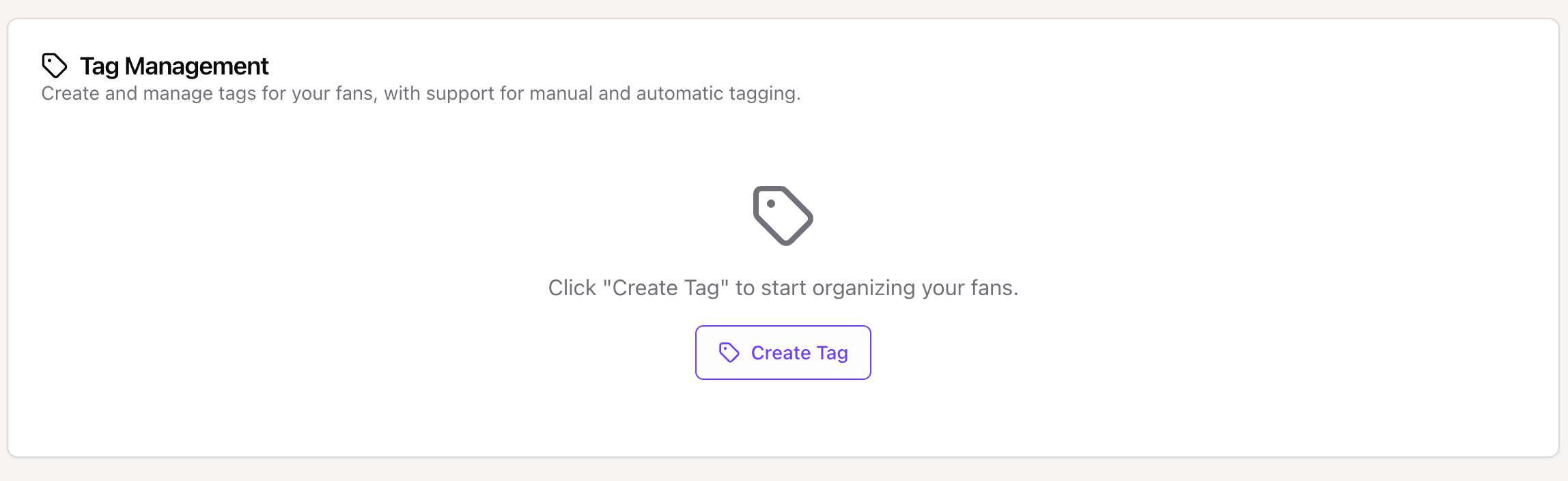
Tag Management Interface - Showing the list of existing tags The Tag Management interface showing your custom and system tags.

From here, you can see all your active tags, their colors, and how many fans are assigned to each.


Creating a New Tag

Click "Manage Tags" (or "Create Tag") to start.

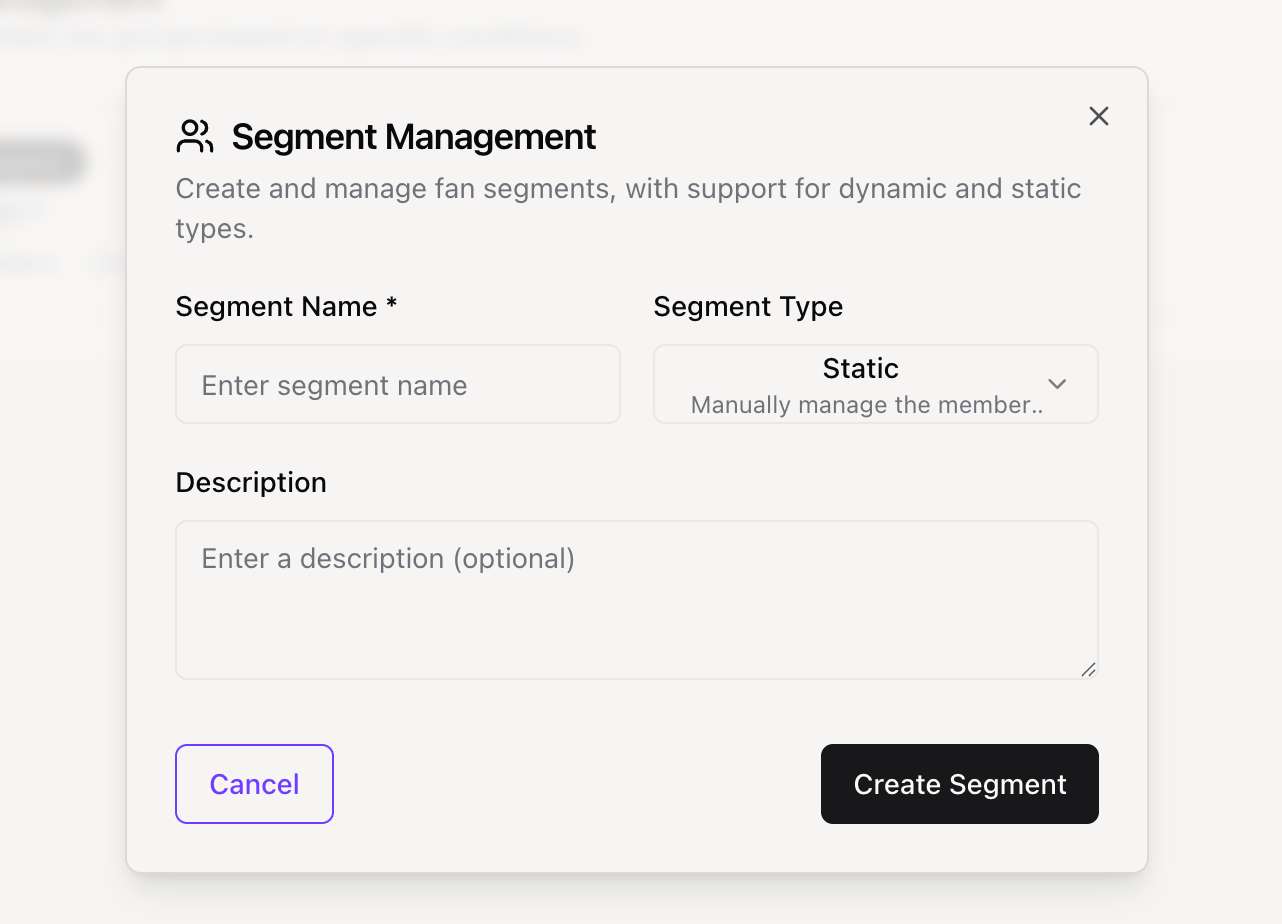
Create Tag Modal - Showing the form to create a new tag The Create Tag modal.

1. Basic Information

  • Tag Name: Keep it short and descriptive (e.g., "VIP").
  • Color: Select a color to help visually distinguish this tag in lists.
  • Category: Group tags by type (General, Behavior, Demographic, Custom).

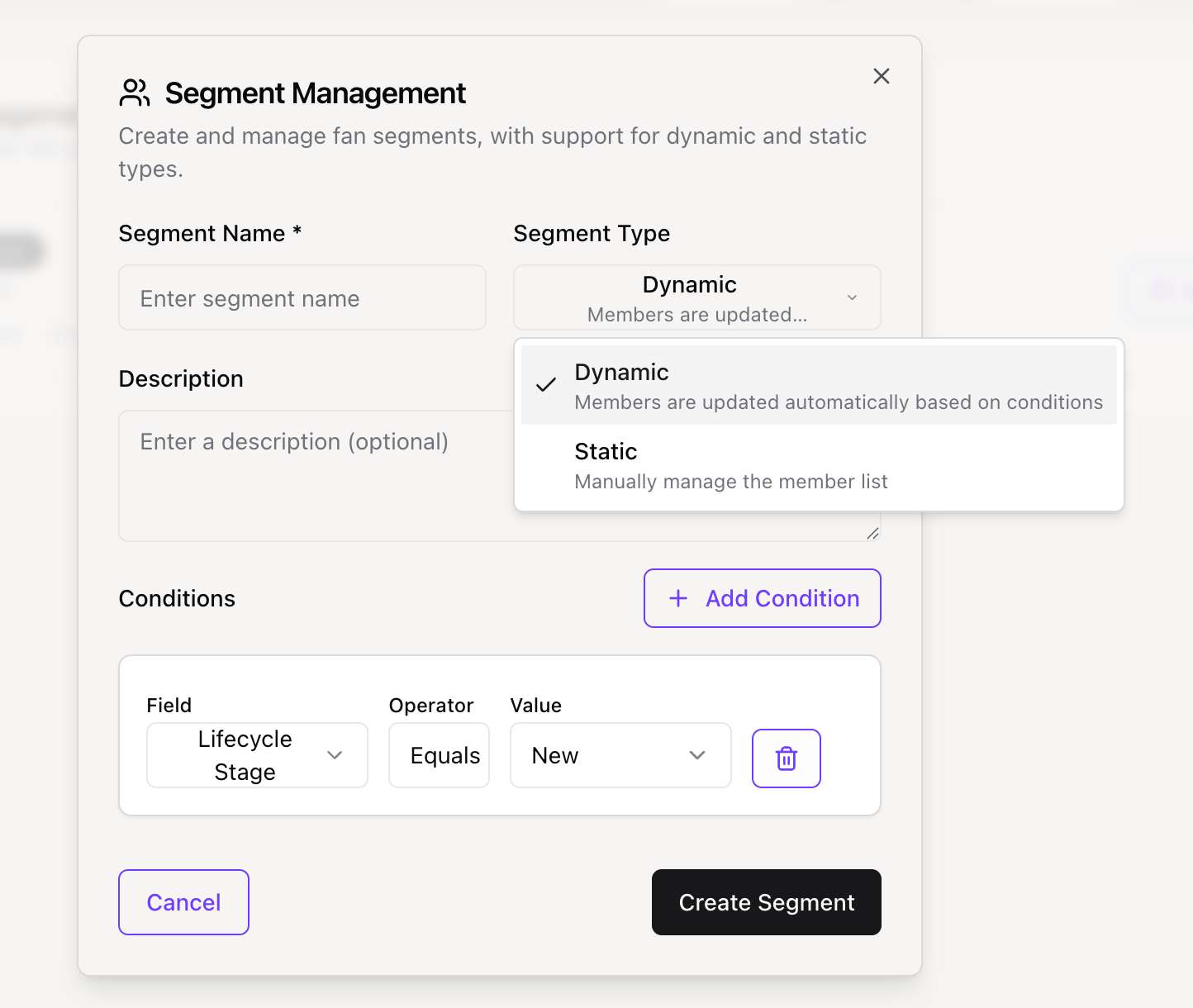
2. Automatic Tagging Rules (Optional)

If you want the system to assign this tag automatically, enable "Automatic Tagging" and set the rules.

Available Triggers:

  • Lifecycle Stage matches: e.g., Tag all "Advocates".
  • Total Spending reaches: e.g., Tag anyone who spends > $500 as "Whale".
  • Purchase Count reaches: e.g., Tag after 10 purchases.
  • Activity Level: e.g., Tag users active in the last 24 hours.

Automatic Tag Rule Setup - Showing rule configuration Configuring automatic rules for a tag.


Applying Tags Manually

You can also apply tags directly to a fan's profile.

  1. Navigate to the Fan List.
  2. Click "View Details" on a fan.
  3. In the Tags section, click "Add Tag" and select from your existing list.

Best Practices

  • Color Coding: Use consistent colors (e.g., Green for revenue-related tags, Blue for engagement).
  • Don't Over-tag: Too many tags can clutter the profile. Use Segments for complex filtering instead.
  • Review Automatically: Periodically check if your automatic rules are working as intended.

Need Advanced Filtering?

If basic tags aren't enough, try using Segments for more complex logic. 👉 Read the Segmentation Guide

前へCRMファン...
次へCRMセグメ...
Postion

あなたのコンテンツを、あなたの手で。

TwitterGitHubDiscordDiscordInstagram

探索

  • ダッシュボード
  • コミュニティ
  • 料金プラン
  • ドキュメント
  • よくある質問

会社情報

  • 更新履歴
  • ロードマップ
  • お問い合わせ
  • 採用情報
  • ブログ

リソース

  • 招待
  • クイックスタート
  • Postionとは
  • ダッシュボードガイド
  • パブリックAPIガイド

サポート

  • Postionについて
  • Discordに参加
  • BuouUI
  • サイトマップ
  • ブログRSS

© Postion 2026 — BuouTech Inc.

運営情報アクセシビリティプライバシーポリシー利用規約