Postion
  • 社区动态
  • 定价标准
控制台
登录账号
Discord

基础入门

总览介绍为什么选择 Postion?核心概念快速入门指南搬家与迁移控制台指南新用户必看如何赚钱

创作者专区

站点管理写作与编辑Postion 编辑器品牌与定制化界面风格指南SEO 搜索引擎优化社交分发工作流模板市场商业化变现内容访问与定价订阅模式Stripe 支付接入其他收入来源提现与手续费数据分析高级数据分析邮件营销推荐返利机制导出数据CRM 粉丝管理CRM 标签指南CRM 客户分群

共建社区

社区准则早期采纳者红利如何参与

技术开发支持

平台架构Postion 底层原理绑定自定义域名Webhooks 钩子公开 API 接口文档存储限制与配额

其他

常见问题解答疑难解答与排错
文档
Template Marketplace: Design Your Dream Site

Template Marketplace: Design Your Dream Site

Discover how to browse, purchase, and apply professional templates to your Postion site. From free starters to premium designs, find the perfect look for your brand.

Your site's design is the first thing visitors see. The Template Marketplace is your curated shop for professional, high-quality website designs. Whether you're a writer, photographer, or business owner, there's a template built for you.

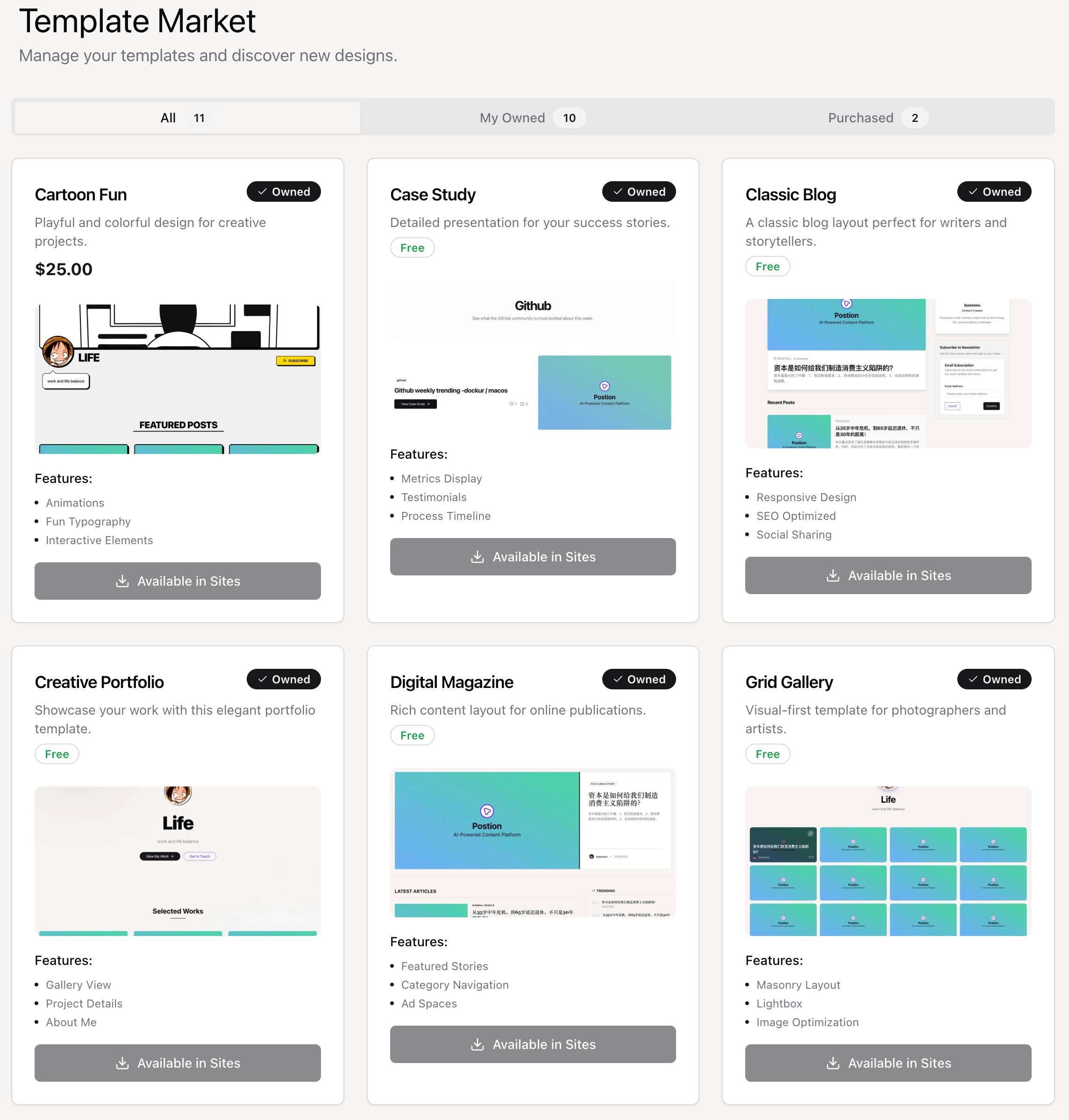
Template Marketplace

1. Browsing Templates

To explore available designs:

  1. Go to Marketplace: Click on "Template Market" in the main dashboard sidebar.
  2. Filter Views: Use the tabs to switch between:
    • All: View every available template.
    • My Owned: See templates you have already acquired.
    • Purchased: View your transaction history.

2. Template Types

We offer two main categories of templates:

Free Templates

These are high-quality, essential designs available to all users at no cost. They are perfect for getting started.

  • How to get: Simply select them when creating a site or switch to them in your site settings.

Premium Templates

These are advanced, highly polished designs created by top designers. They often include unique layouts, animations, and specialized features.

  • Pricing: Prices vary by template (e.g., $19, $49).
  • One-Time Purchase: Once you buy a template, you own it forever and can use it on multiple sites (subject to license terms).

3. Purchasing a Template

  1. Select a Template: Click on a premium template card to see its details, features, and price.
  2. Click Purchase: Click the "Purchase" button.
  3. Complete Payment: You will be redirected to a secure Stripe checkout page.
  4. Confirmation: After payment, you'll be redirected back to the marketplace. The template will now be marked as "Owned".

4. Applying a Template

Once you own a template (Free or Premium), applying it is easy:

  1. Create a New Site: During the site creation flow, you will be asked to choose a template. All your owned templates will be available for selection.
  2. Existing Site:
    • Go to your Site Dashboard.
    • Navigate to Settings → Appearance.
    • Click "Change Template" and select your new design.

5. Previewing Templates

Before purchasing or applying, preview how a template will look with your content.

Preview Features

👁️ Live Preview

See the template with sample content before you buy.

📱 Device Views

Preview on desktop, tablet, and mobile layouts.

Previewing a Template

Click on any template card in the marketplace

View the template details and screenshots

Click "Live Preview" to see an interactive demo

Test navigation, layouts, and responsiveness


6. Template Pricing

Premium templates are priced based on complexity and features.

Pricing Tiers

TierPrice RangeWhat You Get
StarterFreeBasic layouts, essential features
Standard$19-29Enhanced designs, more customization
Premium$39-59Advanced features, animations, unique layouts
Designer$79+Exclusive designs, priority support

What's Included

Every template purchase includes:

  • ✅ Lifetime access to the template
  • ✅ All future updates to that template
  • ✅ Use on multiple sites (per license)
  • ✅ Email support for setup questions

7. Template License

Understand what you can do with purchased templates.

License Terms

AllowedNot Allowed
✅ Use on your own Postion sites❌ Resell or redistribute the template
✅ Customize colors and content❌ Use on non-Postion sites
✅ Use for commercial sites❌ Claim as your own design

Multi-Site Usage

  • Standard License: Use on up to 3 personal sites
  • Extended License: Contact support for agency/unlimited use

All purchases are final. Please preview templates thoroughly before purchasing.


8. Customizing Templates

After applying a template, make it your own.

Customization Options

🎨 Colors

Change primary, secondary, and accent colors to match your brand.

✍️ Fonts

Select from Google Fonts or upload custom typography.

📐 Layout

Adjust header styles, content width, and sidebar position.

Advanced Customization

For users who want more control:

  • Custom CSS: Add your own styles to override template defaults
  • Component Settings: Many templates have configurable sections
  • Logo & Branding: Upload logos and favicons

Access Customization

  1. Go to Site Dashboard → Appearance
  2. Click "Customize" next to your current template
  3. Adjust settings in the visual editor
  4. Preview changes before saving
  5. Click "Save" to apply

9. Template Updates

We continuously improve templates with new features and fixes.

How Updates Work

  • Automatic: Minor fixes apply automatically
  • Optional: Major changes are opt-in to avoid breaking your customizations
  • Notified: We'll notify you when updates are available

Updating a Template

  1. Go to Template Market → My Owned
  2. Look for templates with an "Update Available" badge
  3. Click "View Update" to see what's changed
  4. Click "Apply Update" if you want the new version

Before updating: If you've made significant CSS customizations, back up your custom styles first. Updates may override some custom changes.


10. Selling Your Templates

Are you a designer? You can sell your templates on our marketplace!

Become a Template Creator

Apply to the Template Creator Program

Submit your template for review

Set your pricing (you keep 70% of sales)

Your template goes live in the marketplace

Earn passive income from each sale!

Interested? Contact us at [email protected] to learn more about becoming a template creator.


FAQ

Can I switch templates without losing content?

Yes! Templates only affect the design, not your content. All posts, pages, and settings remain intact.

What if I don't like a template after purchasing?

Purchases are final, but you can always switch back to a previous template. We recommend using the Live Preview extensively before buying.

Do templates include placeholder images?

Yes, templates come with sample content and images for preview. These are replaced with your actual content when applied.

上一页社交分发...
下一页商业化变现
Postion

写下专属于你的篇章

TwitterGitHubDiscordDiscordInstagram

探索

  • 控制台
  • 社区
  • 价格
  • 帮助文档
  • 常见问题

公司

  • 更新日志
  • 开发路线图
  • 联系我们
  • 加入我们
  • 官方博客

资源

  • 邀请机制
  • 快速入门
  • 什么是 Postion
  • 控制台指南
  • 公开 API 指南

支持与服务

  • 关于 Postion
  • 加入 Discord
  • BuouUI 项目
  • 站点地图
  • 博客 RSS

© Postion 2026 — BuouTech Inc.

版本说明无障碍隐私政策服务条款